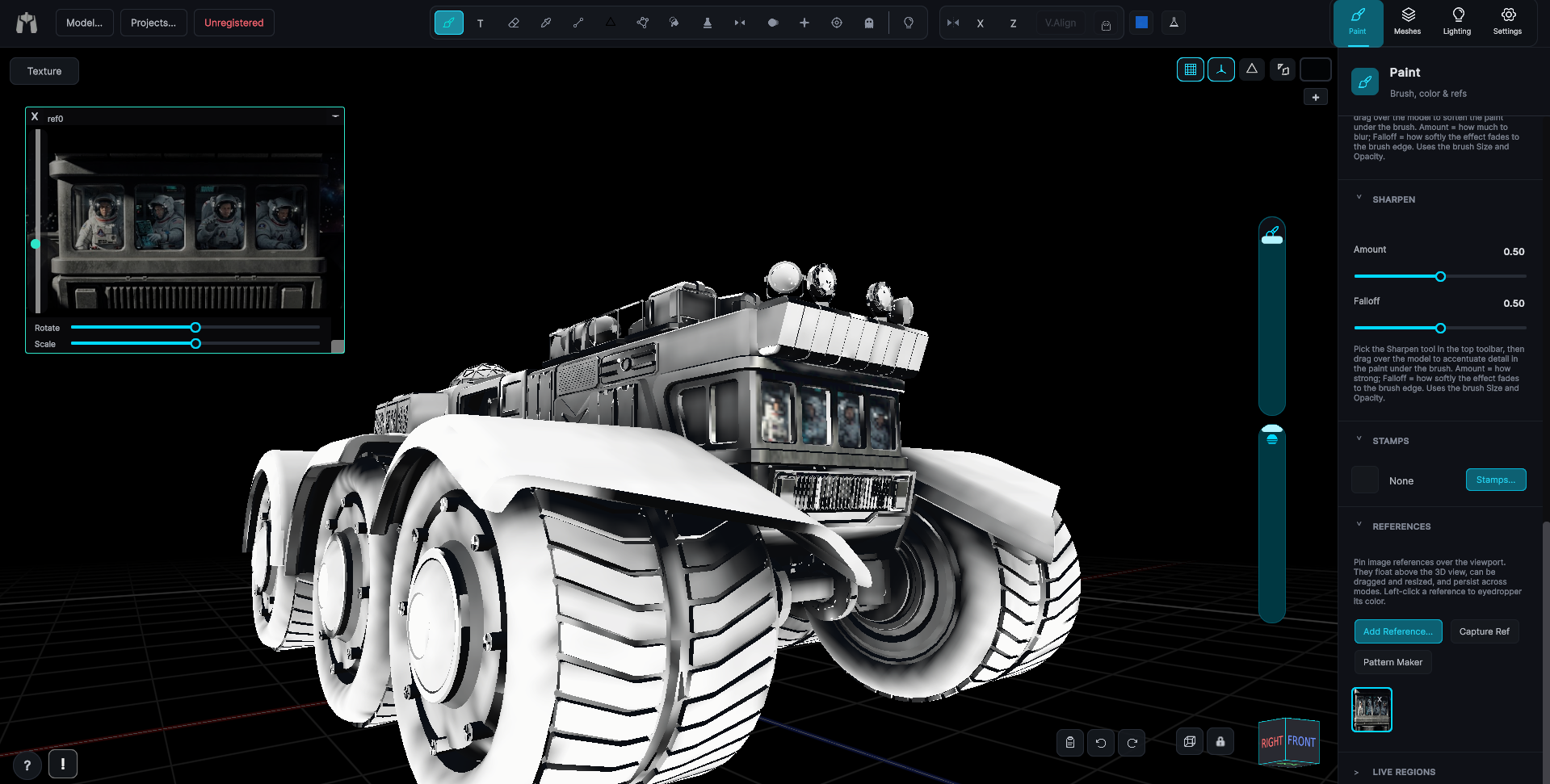
Drag the .lwo straight in
Drop a .lwo on the window and it loads, geometry, UV maps with proper seam handling, and even ngons, triangulated cleanly on import. No exporting to FBX, no plugin, no intermediate files.
 MechaPaint
LWO2 and LWO3, every LightWave save from 6.0 to 2025. No resaving, no conversion.
No FBX conversion dance, no lost surfaces. MechaPaint reads LightWave objects natively, LWO2 and LWO3 alike, surfaces, layers, UVs, and color textures arrive intact, ready to paint. Few painting apps bother supporting LightWave at all. I built an importer for it. A modern painter that opens .lwo files natively is, as far as I know, unique to MechaPaint. Of course, that only matters because your model shows up ready to paint, surfaces and textures intact.
Drop a .lwo on the window and it loads, geometry, UV maps with proper seam handling, and even ngons, triangulated cleanly on import. No exporting to FBX, no plugin, no intermediate files.

Every LightWave surface becomes its own paintable submesh with its own layer stack, and every LightWave layer arrives as a separate part, hidden layers even stay hidden. The structure you built in Modeler is the structure you paint.
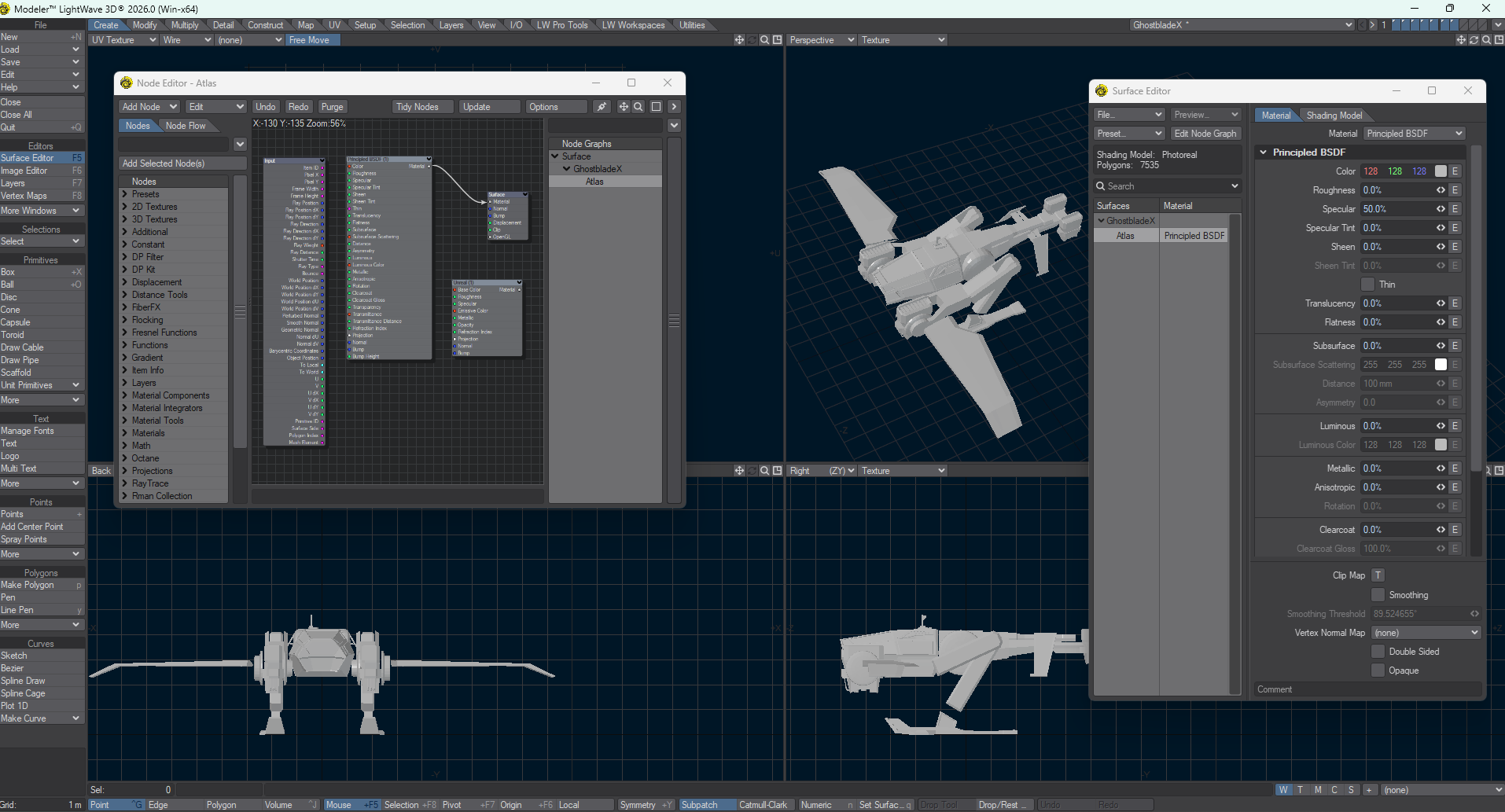
MechaPaint walks each surface's node graph to find its color texture and follows LightWave's Images-folder conventions to locate the files on disk. Your model shows up looking like itself, ready to paint over.
That drive full of LightWave work going back to the 90s? Open it here and repaint. No resave, no copy of LightWave 2024 required, and when a map is too cryptic to work with, Rebuild UVs generates a modern layout with your textures remapped onto it.
Any LightWave save from 6.0 to 2025 opens as it is. Nothing to convert first.
Drag the .lwo onto MechaPaint and paint per surface with layers, patterns, symmetry, and the clone stamp.
Write painted textures per surface and hook them back up in Surface Editor. Originals untouched.
Buying unlocks watermark-free exports.