Layers that behave
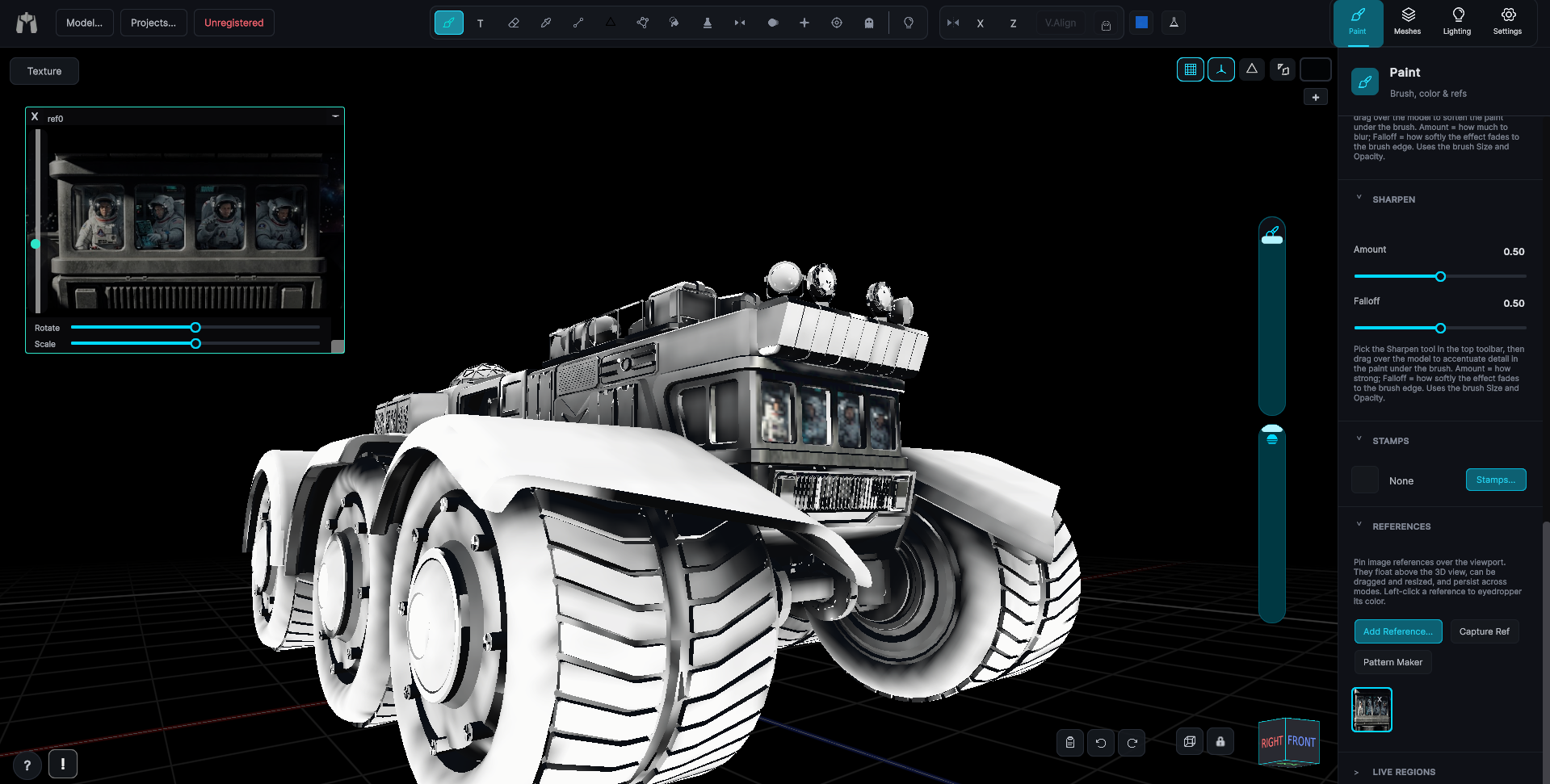
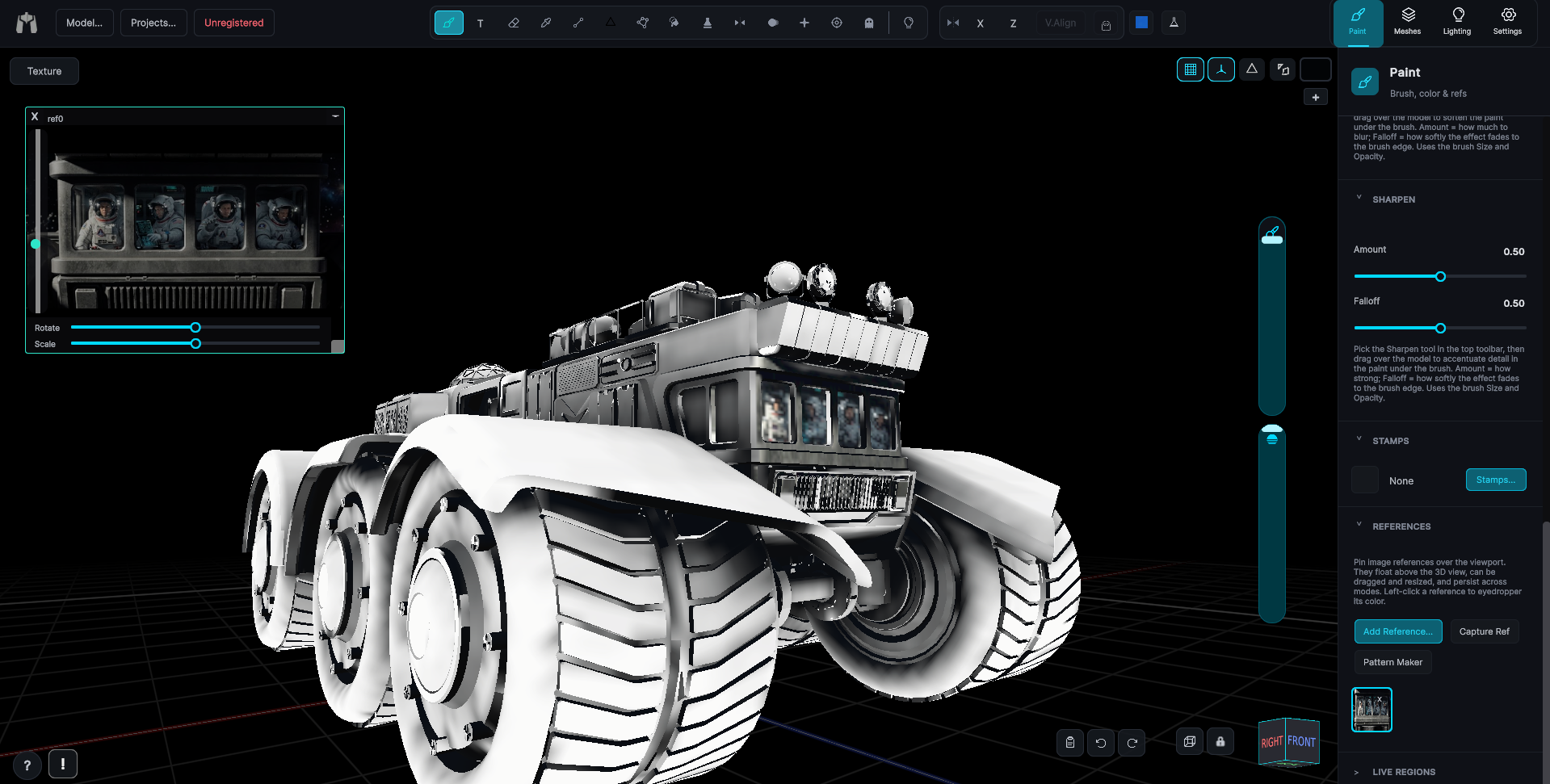
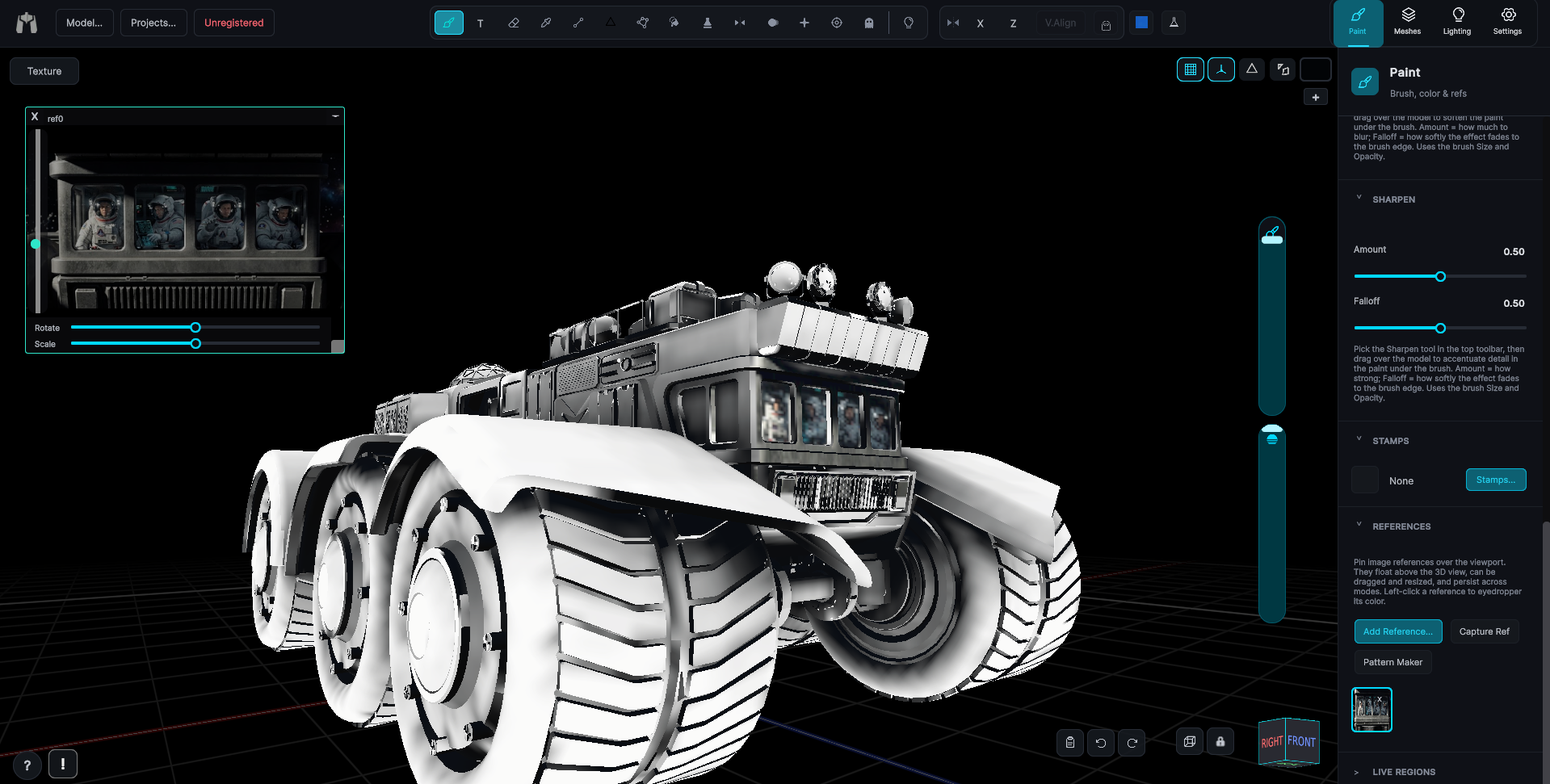
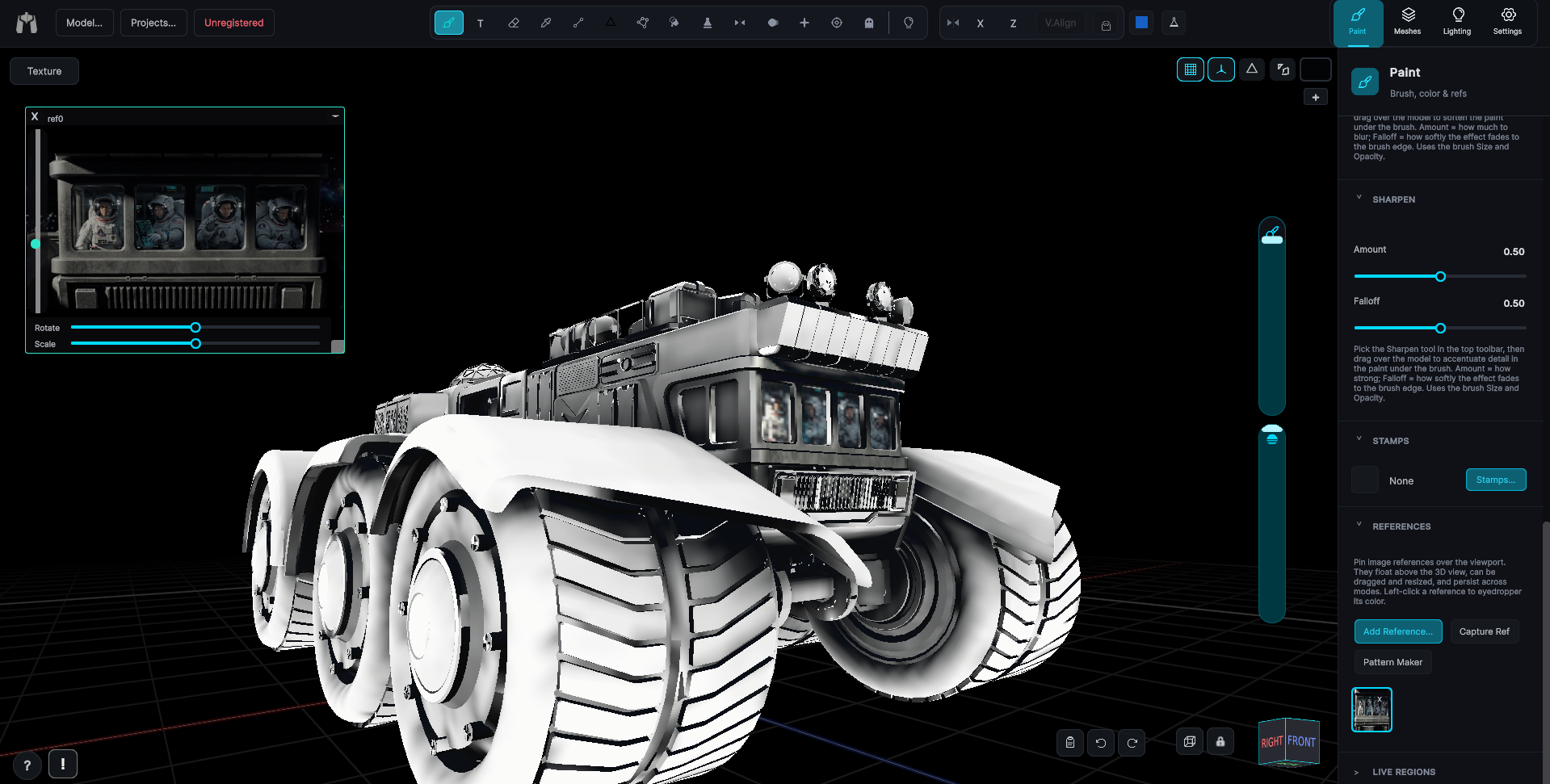
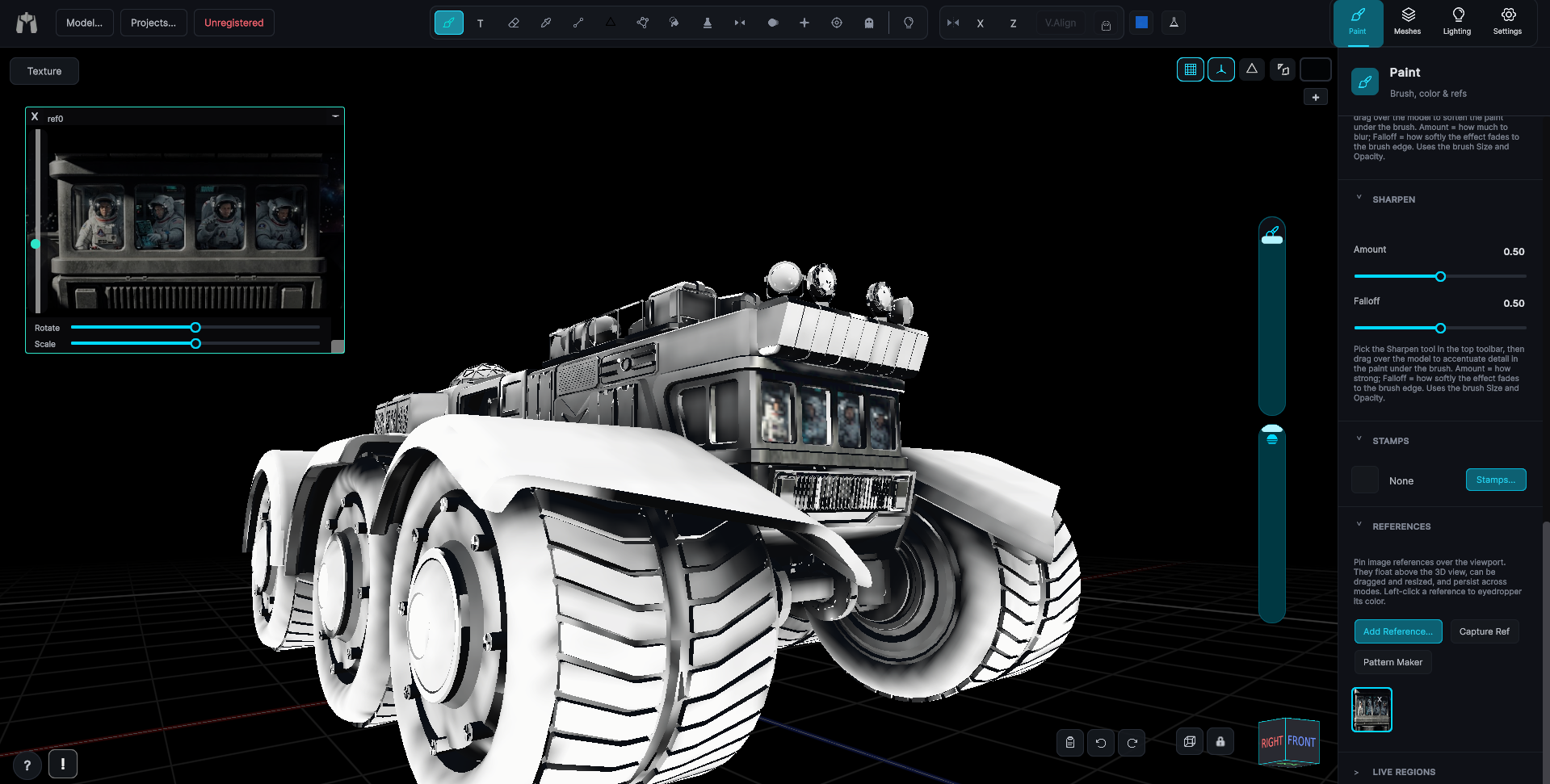
A full layer stack per submesh: paint on layers, adjust opacity, merge, hide, recolor, and import an image straight into any layer. It works the way Photoshop taught you it should, because that muscle memory is worth something.
 MechaPaint
MechaPaint / Painting & Interface
MADE BY ARTISTS, FOR ARTISTSA 3D painting tool should feel like painting. Here is what MechaPaint gives you to work with, and why it behaves the way it does.
I paint for a living, and I built MechaPaint for the way painters already think. Nothing here is named after the code that implements it. Every tool does the obvious thing, immediately, and the interface gets out of the way so you can keep looking at your model instead of at menus.
A full layer stack per submesh: paint on layers, adjust opacity, merge, hide, recolor, and import an image straight into any layer. It works the way Photoshop taught you it should, because that muscle memory is worth something.
Everything you paint lands on layers above the texture you imported, and the file on disk is never touched. Experiment as recklessly as you want. The model you started with is still sitting there underneath, untouched.
Brush, bucket, eraser, eyedropper, line, stamp, clone. Named plainly and behaving the way they do everywhere else. Pressure-sensitive pen support with per-user calibration is built in, and a plain mouse works great too.
Copy any image and press Ctrl or Cmd+V to drop it in as a floating reference. Drag a model or a texture straight off your desktop onto the window. No import wizard, no asset database, no fuss.
Models load in seconds, strokes land with no lag, and the things you do constantly are one key away. Speed isn't a spec sheet item here, it's the difference between trying an idea and talking yourself out of it.
Orbit, pan, and zoom with the mouse. A view cube in the corner snaps you head-on to any face. Lock the camera when a stroke really matters. Some tools even keep track of where the camera was when you used them, so you can jump right back in later.
Bring in an animated model and paint directly on it mid-animation. Scrub to any frame, stop on the pose you care about, and put paint on the surface exactly as it will be when the character is actually moving. Painting on a mesh mid-animation is something I have not seen in any other paint app. Of course, that only matters because it lets you fix a stretch on the exact frame where it happens. Textures distort when a mesh deforms, and this is the only honest way to see what that distortion is doing to your work.
A logo that looks perfect on the T-pose can smear across a shoulder the moment the arm comes down. Paint on the pose where it breaks, fix it there, and know it holds through the whole cycle.
Faces, folds, joints, and anything on a bending surface read completely differently in motion. Scrub to the frame the audience will actually see and work on that, not on a mannequin standing at attention.
Hold the model on any frame and paint on it like a static mesh, with every brush, stamp, and fill available. Release it and the animation picks up where it left off, with your paint riding along.
Everything you paint goes into the same texture map as always, so it exports and drops into your engine exactly like any other MechaPaint job.
The tools you reach for every day, done properly.